Setup instructions for your SRDI integration.
System Requirements
- Windows 10 Operating System or later
- .NET v4.8.1 or later
- Internet Connection
- Must be able to hit the following URLs if you are on a locked down studio network:
api.sportradar.us(resolves tod1o0k5pc2qgbmr.cloudfront.net)api.radar360.sportradar.com(resolves todheqojapzlooy.cloudfront.net)wss://api.nba.com/statscapture/ws(connects via standard web ports)wss://api-dev.nba.com/nonprod/ws(connects via standard web ports)https://api.nba.com/statscapture/rest(connects via standard web ports)https://api-dev.nba.com/nonprod/rest(connects via standard web ports)developer.geniussports.comhttps://prod-broadcast-on-air.srbroadcast.comhttps://auth-prod.srsmtcommon.comhttps://www.tv-graphics.net
- Must be able to hit the following URLs if you are on a locked down studio network:
- When connecting to the In-Arena feed
- You will most likely need a second network adapter set to the venue-specific IP address in addition to your regular ‘truck’ network. Please reach out to us if you do not have the latest list of venue-specific IP addresses.
- When running SRDI on a separate laptop than your CG application
- Connection to the same network your CG is on.
For SRDI or OnAir support, use the sport-specific graphics support Slack channels or contact the Graphics Support team at [email protected].
Use shared channels rather than contacting individuals directly to ensure timely support coverage.
1. Download the Installer
-
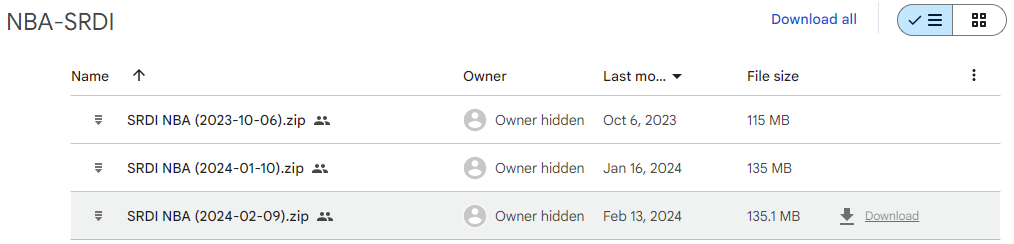
Download the latest SRDI zip file from the Google Drive link you were provided.
-
Place anywhere on the C Drive of your computer.
2. Unzip the SRDI folder
-
Extract the ‘SRDI’ folder to anywhere on your C Drive.
Note: Avoid placing the SRDI folder on an external hard drive or any location other than the C drive.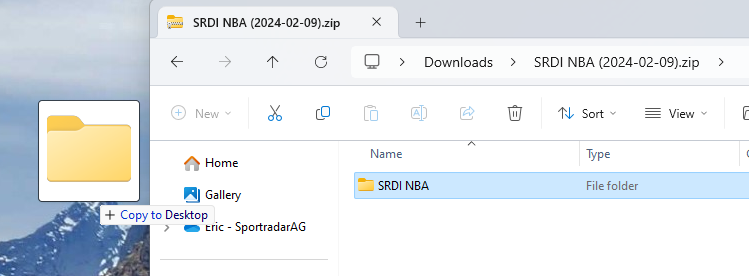
-
If desired, create a desktop shortcut of the
SportsDataInterface.Presentation.Launcher.exefile by right-clicking on it and sending a shortcut to the desktop.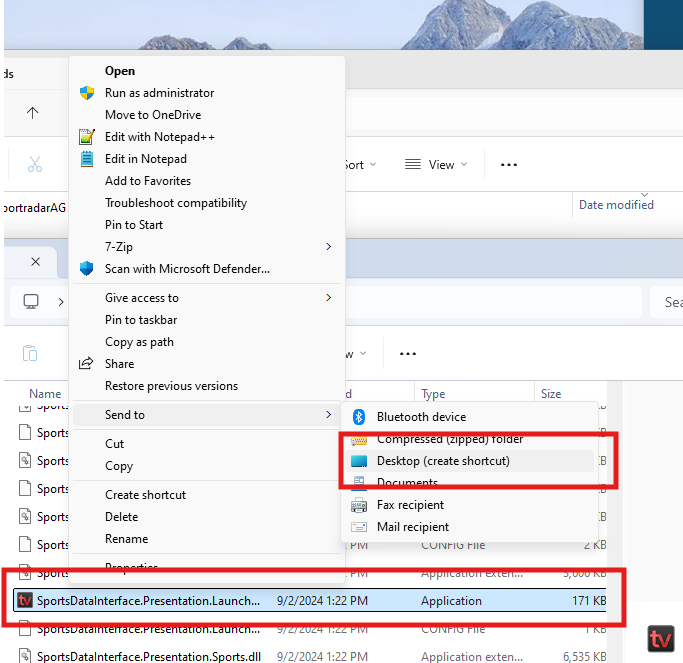
WarningDO NOT DRAG THE
.EXEOR ANY OTHER FILES OUT OF THE SRDI FOLDER.
3. Launch SRDI
Double click on either the shortcut you created on the desktop or the SportsDataInterface.Presentation.Launcher.exe file in the SRDI folder (the file will have a TVG icon).
Input Credentials
To access the data within SRDI, you will need to enter a collection of network-specific API keys and credentials that you will receive from Sportradar.
1. Sportradar US API Key
-
In the Configuration menu, click on the Sportradar NBA menu if covering Basketball or the Sportradar MLB menu if covering Baseball.
-
Copy and paste the SR-API key into the “Sportradar [league] API Key” field of the corresponding league you are covering.
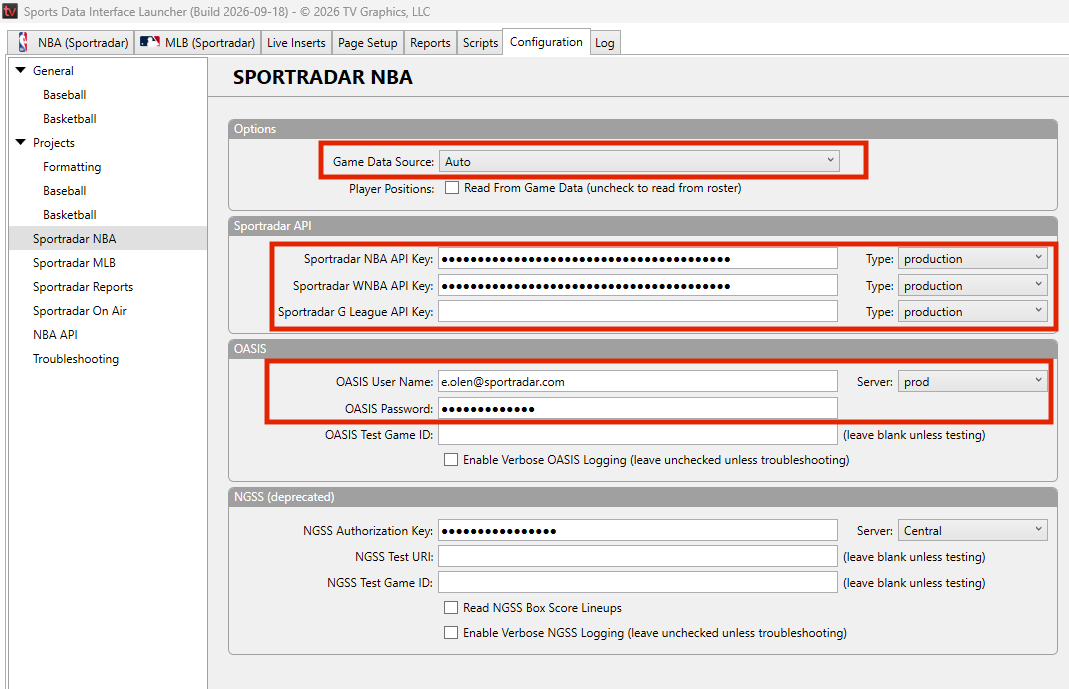
Note: This key allows SRDI to access schedule and roster information.
2. OASIS Credentials
- For access to low latency basketball feeds, enter your OASIS credentials in the OASIS section (shown in the Configuration screen above) and ensure that your Game Data Source is set to Auto.
Note: To verify you are connected to the OASIS feed, check that the Connection Status indicator on the upper right of the Matchup Page is green and says “Connection Status: Realtime”.
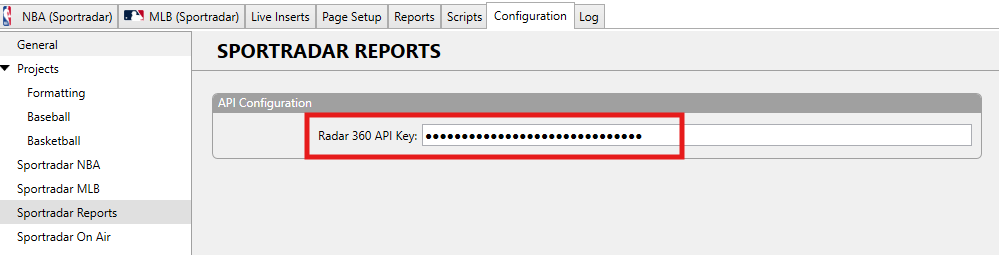
3. Radar 360 API Key
In the Sportradar Reports menu, copy and paste your SR-REPORTS key into the Radar 360 API Key field.
Note: This key allows SRDI to access season and career data as well as any integrated 360 reports.